The latest feature in Dynamics 365 CE (and PowerApps), is to provide user access to an environment using AAD Security Group or Microsoft 365 Groups.
This is a wonderful feature for IT admins as they don’t need to deep dive into the security model of Dynamics 365 CE / Power Platform for doing a day to day task of handling the typical ‘User Provisioning’ tickets, especially in organizations where they have lots of systems to handle.
Once the system integrator / IT partner builds the system with required business units, teams and roles, all the IT admin has to do is to add the user to the required group to give the requested roles / access.
Below Microsoft Docs articles will help you to understand the basics, before we go ahead.
- Different types of groups : Compare groups – Microsoft 365 admin | Microsoft Docs
- How to create a basic group in AAD: Create a basic group and add members – Azure Active Directory | Microsoft Docs
- How to add a group as a team in Power Platform / D365 CE: Manage group teams – Power Platform | Microsoft Docs
- How to add a group to an Environment during creation: Create and manage environments in the Power Platform admin center – Power Platform | Microsoft Docs
However, what is the best way to setup these groups? These are the questions that I had when I started using this setup:
- How many security groups do I need?
- Can I have nested security group. Is that easier to setup and use?
- Will the changes to a security group used by D365 reflect immediately?
Let me try to answer them based on my understanding…
How many security groups do I need for an environment?
To answer this question, I took the liberty of classifying the groups into two based on where / how they are used. I also named them as below
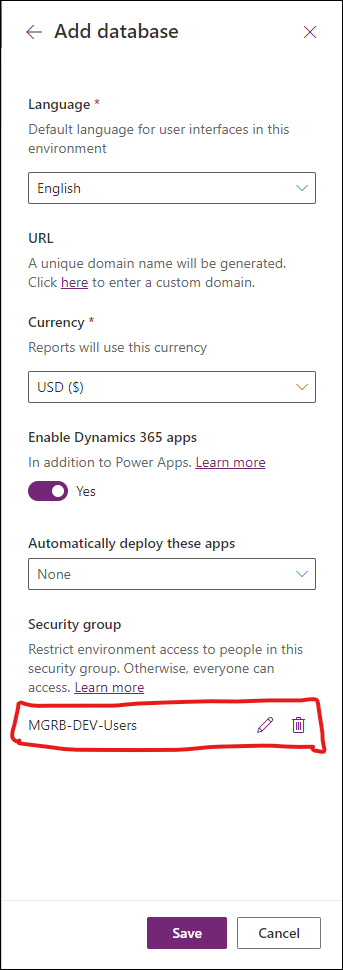
- Environment Security Group: This security group is used in the ‘Create an Environment’ procedure to set the users who will have access to an environment.
Let us assume the environment we are going to use is ‘MGRB – Development’. Our goal is to allow only developers and testers to access this environment. So we will create a group as ‘MGRB-DEV-Users’ which stands for ‘Users of MGRB Development Environment’. We will then add the developers as the members of this group. While setting up the environment, we will choose the group in the ‘Security Group’ field as shown below.
- Role Specific Group: This security group is used to provide a specific role to the members of the group in the associated environment.
In the above mentioned example, while the members were added to the group and were set as the security group for accessing the environment, they still won’t be able to access the environment. Yes, you guessed it right. They need a security role!
There can be multiple users in the Environment Security Group – MGRB-DEV-Users, but our goal is that only developers can be with ‘System Administrator’ role. To fulfill this goal, we will now have one more group as ‘MGRB-DEV-Admins’. This group is then created as a group team in Dynamics 365 CE / Power Platform.
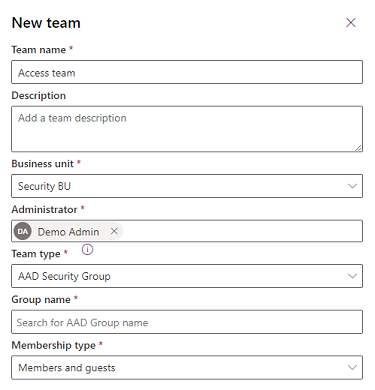
So, if we have additional roles, then we will one group per role and we can call it as ‘Role Specific Group’.
Here is our conclusion:
Environment Security Group and Role Specific Groups will work together to provide an user, access to an environment.
A user who is present in an ‘Environment Security Group’ should also be part of at least one ‘Role Specific Group’.
What about nested security groups?
Nested security groups do work in Dynamics 365 CE / Power Platform. However, I suggest my IT admins to avoid using nested security groups for below reasons
- Easier auditing / reporting – I prefer having individual security groups, as it gives me clear information on who is part of which environment and has what role. Instead of spending time to dig into each nested group to get the required report, if needed for any auditing purpose.
- Easier to remove access – A user can be part of more than one ‘Role Specific Group’. It is always easier to remove a user from an Environment than removing them from all roles (also make setting them again easier. Yes, users may take a Sabbatical, change location, region etc.,)
Will the changes to a security group using by D365 reflect immediately?
Nope. It won’t reflect immediately. You will need to ask the user to log out of all browsers and login again to Power Platform / D365 CE. Learnt it the hard way.
Well, here we are at the end of my post. This is my preferred way of using the security groups in D365 CE / Power Platform. Do comment your thoughts / ideas.
Cheers.
 mgrb
mgrb 